How to make a bicep heart lockscreen or wallpaper
Updated 2026-11-10
A bicep heart lockscreen is a still of the pose, one arm flexed and the other hand curled against that bicep to form a heart, set as the picture on your phone’s lock screen. Put the same picture behind your apps and it becomes a bicep heart wallpaper. Some people say heart bicep instead; it is the same thing.
We don’t offer a pack of ready-made bicep heart wallpapers, and frames from other people’s clips are theirs, so we would skip those. The ones worth keeping show you, or someone who is happy to be on your screen. For the trend itself, see what the bicep heart trend is.
Where to get a vertical picture
Take the photo yourself
This route is free. You need both hands for the pose, so use the self-timer with the phone propped up, or hand it to a friend. The back camera usually gives a sharper picture than the front one.
Hold the phone upright and frame yourself from the waist up, with space above your head for the clock. Phone cameras normally take 3:4 photos, which are much wider than a lock screen, so about a fifth of the width goes from each side when you set one. Stay in the middle with room around your elbows, or use a 16:9 setting if your camera has one. A plain wall behind you keeps the time easy to read. Our pose guide covers where the hands go. Take a few shots and keep the one where the heart reads most clearly.
Save a frame from a clip
If you have already filmed the pose, pick the moment the heart is complete and your hands are still. A frame from a moving shot can come out slightly blurred.
- iPhone with iOS 27: in the Photos app, open the video, play it, pause on the frame you want and choose Save Video Frame as Photo. Apple’s guide to saving a video frame has the steps.
- Android: the Google Photos video editor has an Export frame option.
- Anything else: pause, wait for the playback controls to disappear, take a screenshot, then crop off any black bars.
A video frame usually has fewer pixels than a photo from the same phone, so expect a little less detail.
Make it from one photo with AI
If you would rather not pose for it, Heart Bicep AI turns one photo into a 7-second vertical video of the pose: 9:16, 720p, no watermark, from $2.99. In our videos of people, the heart comes together a little past halfway and holds until the end, so look for your frame in the last couple of seconds. Download the video to your phone and save the frame with one of the methods above.
A few things to know first:
- Start from a roomy photo. Use a waist-up photo of yourself, or of an adult who agreed, with the face and both arms visible. For a lockscreen, leave some space above the head and at both sides.
- The free preview is for checking the look. Before you pay, you can see a limited free preview picture. Use it to check how the face and the overall picture come out. Its hand position can differ from the finished video, so take your wallpaper from the video.
- Expect a softer picture than a camera photo. A frame from a 720p video is 720 × 1280 pixels. Most phone screens have more pixels than that, and zooming in when you set it softens it further.
- Download it soon. We delete videos after 30 days.
A dog or cat works too: see the pet guide. Paws cannot make a true heart, so the pet version is a playful take on the pose. When your photo is ready, make your video.
Frame it for the lock screen
A lock screen is not a blank canvas. The clock usually sits near the top, with notifications and shortcut buttons further down. The bicep heart sits high as well, because the raised fist ends up beside your head, so the heart and the clock tend to compete for the same space.
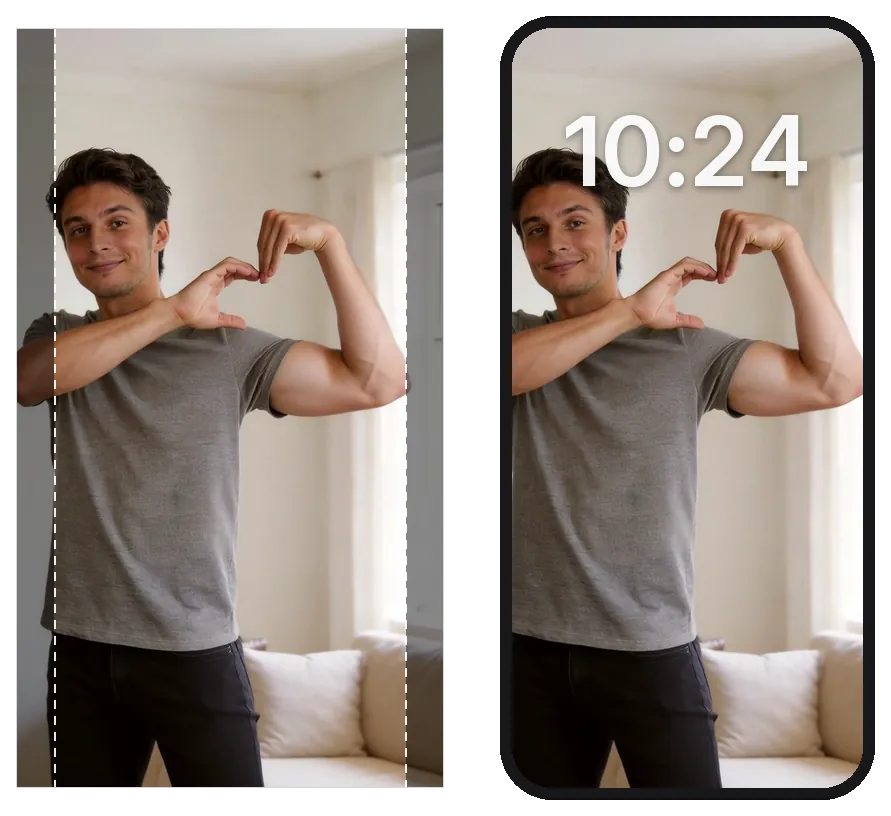
Most recent phones are also taller and narrower than 9:16. Recent iPhones, for example, are 19.5:9. The phone scales a 9:16 picture until it fills the screen from top to bottom and trims what is left over at the sides, a little under a tenth of the width on each side. A raised elbow near the edge is the first thing to go.
- Check it in the editor. The wallpaper editor shows the clock over your picture, so you can see what it covers before you set it.
- Move the picture. On iPhone, Apple’s Lock Screen guide says to pinch open to zoom in, drag the image with two fingers to move it, then pinch closed to zoom out. Zooming in trims more from the sides, so go easy.
- Change the clock instead. In recent versions of iOS, you can tap the time to change its font or switch to a more transparent look, which helps when the time lands on your head.
- Try it on the home screen. App icons sit on top of a home screen picture, so a busy one can make them harder to read. On iPhone, choose Customize Home Screen to give the home screen its own picture. On a Pixel, touch and hold an empty part of the home screen, open the wallpaper options, choose your photo, pick lock screen or home screen, then preview and apply. Other Android phones have similar options, often under different names.
Can it move?
On a Samsung Galaxy phone, yes. Samsung’s help page describes setting a video from the Gallery as the lock screen wallpaper: touch and hold the lock screen, tap Wallpapers, then Gallery, and pick the video. You can trim it there, so you could keep just the part where the heart is held.
An iPhone can play a Live Photo on the Lock Screen when you wake it, on iOS 17 or later. Our video is a regular MP4 rather than a Live Photo, so on iPhone a still frame is the simple choice. On other Android phones, look in your wallpaper settings; if there is no video option, use a still.
Matching lockscreens
Swapping bicep hearts with a partner, so each of you has the other on your lock screen, is a sweet twist on the trend. Each of our videos shows one person, so make one each and trade frames, or film each other. If you want to read more into the gesture, see what the bicep heart means.
Use only photos of yourself or of an adult who agreed. No photos of anyone under 18, of celebrities or public figures, or of strangers. If you would rather film than use AI, join the bicep heart challenge with your own clip and save the best frame from it.
Common questions
Can I download a bicep heart wallpaper here?
There is no ready-made wallpaper to download. Make your own from a photo of you doing the pose, which costs nothing, or from a Heart Bicep AI video of you, from $2.99: download the video and save the frame you like.
What size should a bicep heart wallpaper be?
Vertical, with as many pixels as you can get. Your phone scales the picture to fill the screen and trims whatever does not fit, so leave space around the edges. A frame from our 720p video is 720 × 1280 pixels.
Can I use the video as a moving lock screen?
On a Samsung Galaxy phone, yes: its lock screen settings accept a video from the Gallery. An iPhone Lock Screen can play a Live Photo, but our video is a regular MP4, so use a still frame there.